
Reviewed by Ivan Yurynts, IT Tech LLC
Practical guidance based on local on-site repair and support work.
The screen is protecting encrypted data
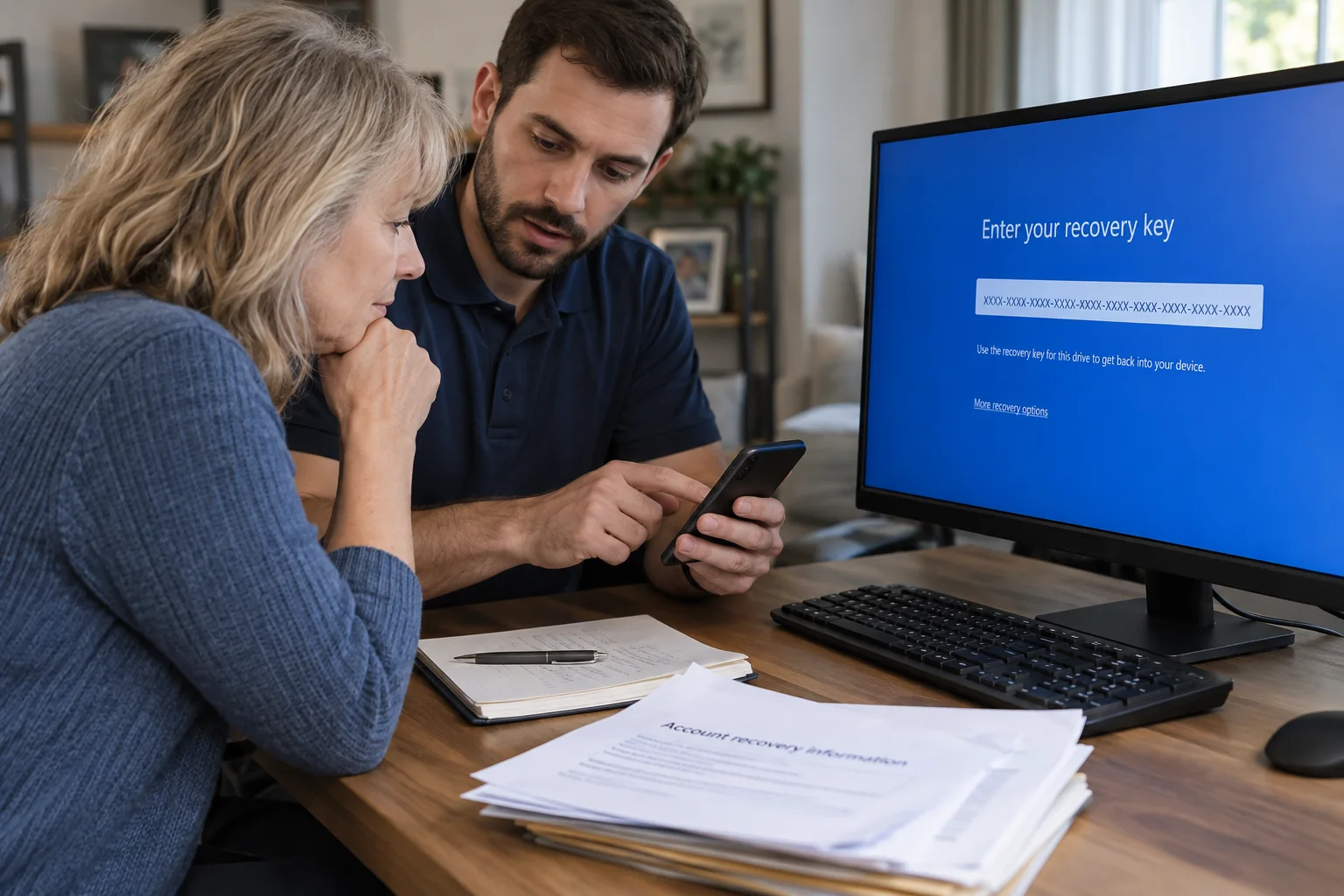
BitLocker may request recovery after firmware, security-chip, boot, hardware, or account changes. The 48-digit key proves authorized recovery; it is not a password that a repair shop can manufacture.
Check the correct Microsoft or organization account
Personal keys may be associated with the Microsoft account used during setup. Business or school devices may have keys stored by the organization. Match the recovery-key identifier before entering a key.
Do not erase a drive that contains needed files
Resetting or reinstalling Windows can destroy the encrypted data without solving the missing-key problem. If the information matters, pause and verify accounts, backups, and device ownership first.
After recovery, determine why it happened
Once access is restored, back up the data and review drive health, firmware, security settings, and recovery-key storage so the next hardware or firmware event does not create the same emergency.
Sources and further reading
Provider features and policies can change. These primary sources were reviewed for this guide.
Related local IT services
Use these service pages to learn what IT Tech LLC can diagnose, install, or support at your home or business.