
Reviewed by Ivan Yurynts, IT Tech LLC
Practical guidance based on local on-site repair and support work.
Confirm whether the computer is actually starting
Listen for login sounds, test keyboard indicators, and look for diagnostic lights. A running computer with a display-path problem is different from hardware that never completes its startup checks.
Eliminate the external display path
Check monitor power, input selection, cable seating, docking stations, and the correct graphics connector. Avoid repeatedly moving internal parts until the external path has been ruled out.
Memory, graphics, power, and firmware can look identical
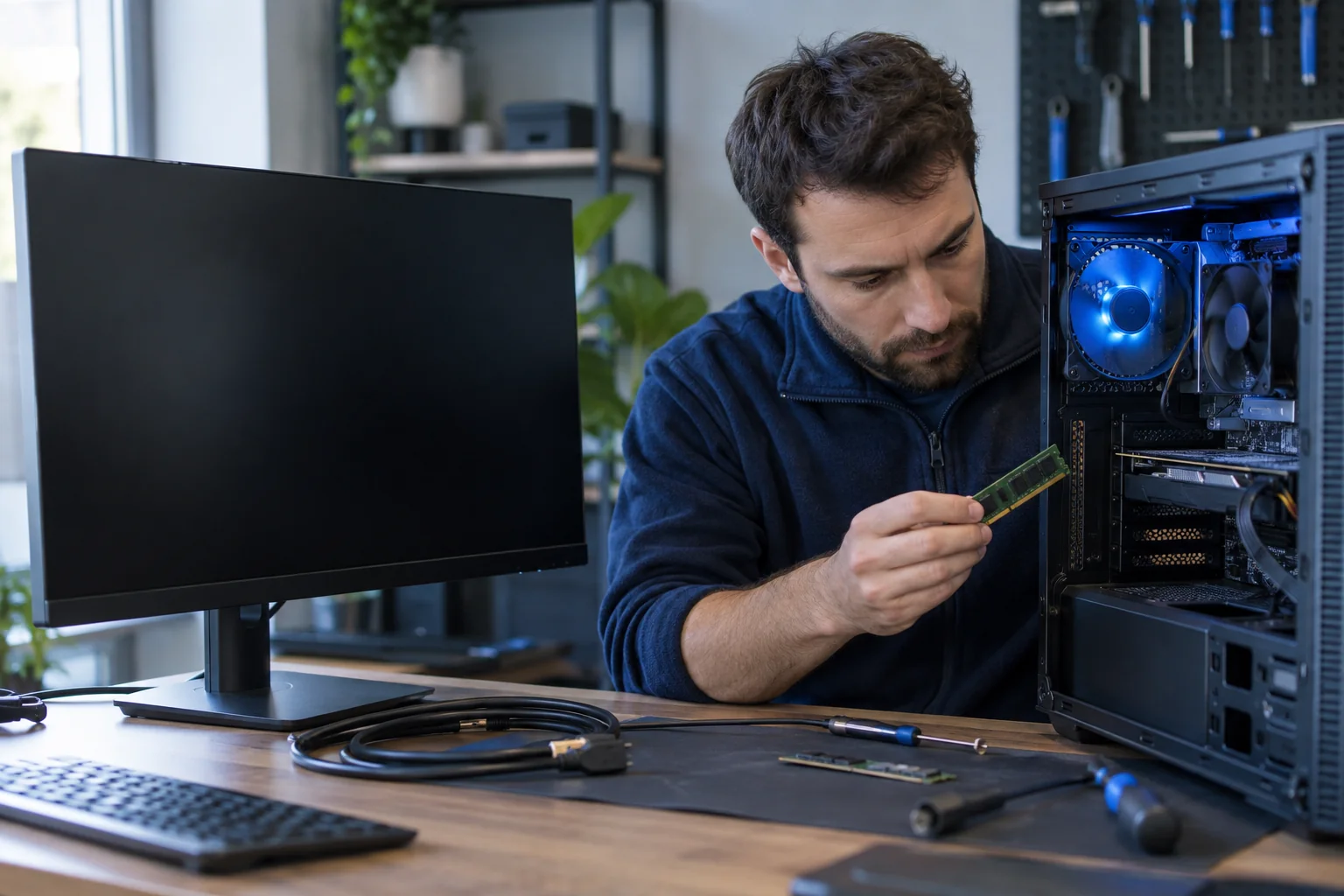
Loose memory, a failed graphics card, weak power supply, firmware corruption, or a motherboard fault can all produce fans with no image. Diagnostic codes and controlled substitution are safer than purchasing several possible parts.
Protect data before resetting or reinstalling
A black screen is not proof that Windows or the storage drive is damaged. Do not erase the computer merely because the display is dark; diagnose hardware and preserve the drive first.
Related local IT services
Use these service pages to learn what IT Tech LLC can diagnose, install, or support at your home or business.