
Reviewed by Ivan Yurynts, IT Tech LLC
Practical guidance based on local on-site repair and support work.
Connected to Wi-Fi does not mean connected to the internet
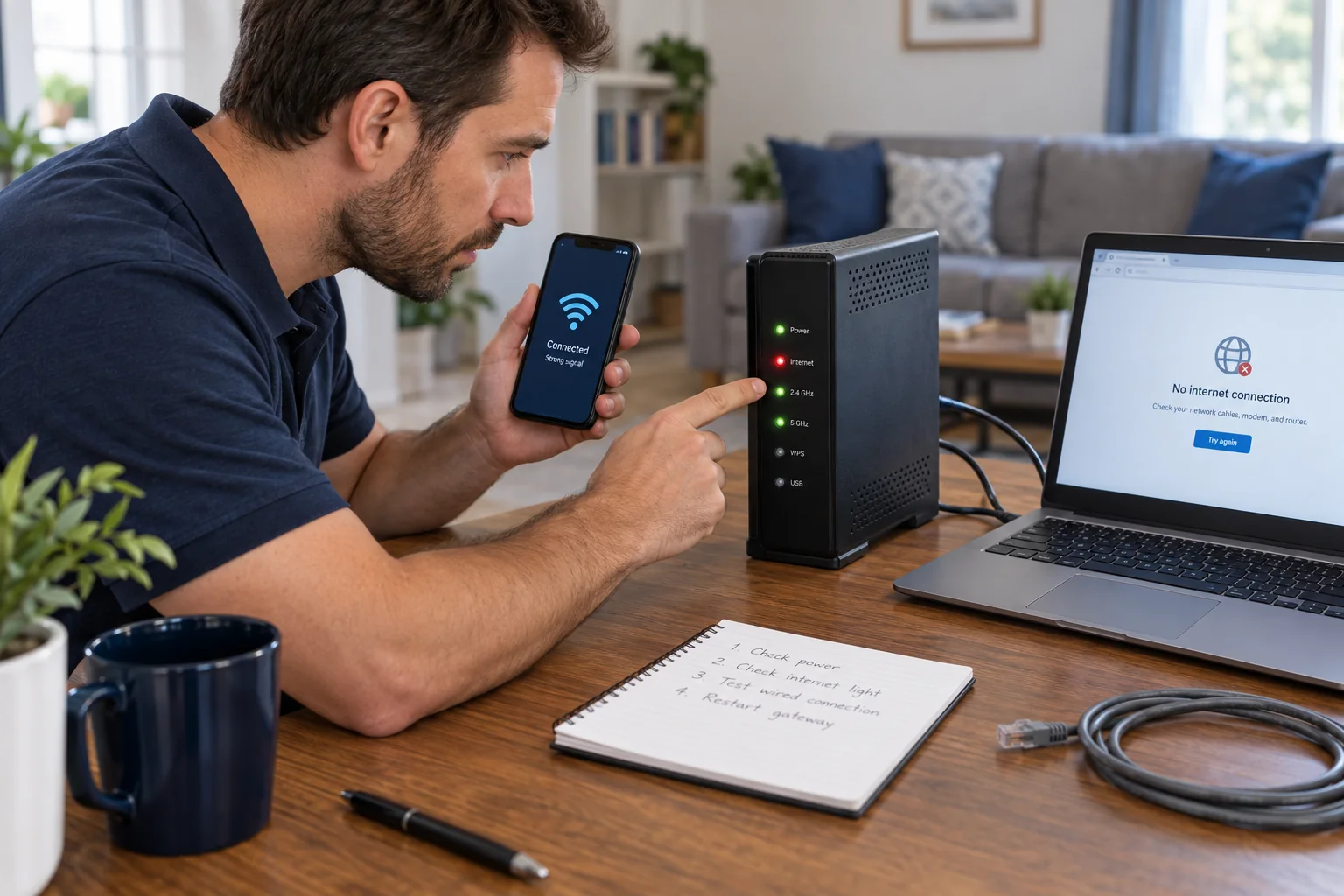
The Wi-Fi icon proves only that the device reached a wireless access point. The router may have lost its provider connection, DNS may be failing, or only one device may have a local configuration problem.
Compare devices and connection types
Test another phone with cellular data disabled, a wired computer if available, and more than one website. If every device fails, focus on the modem, gateway, router, and provider.
Avoid factory resets as the first response
A reset can erase the network name, password, port forwarding, camera access, and smart-device configuration without fixing a provider outage. Record lights and settings before changing them.
Intermittent failures need timing and evidence
Note when the outage occurs, which devices fail, signal strength, gateway lights, and whether service returns after a particular restart. Patterns help separate coverage, hardware, congestion, cabling, and provider problems.
Related local IT services
Use these service pages to learn what IT Tech LLC can diagnose, install, or support at your home or business.