
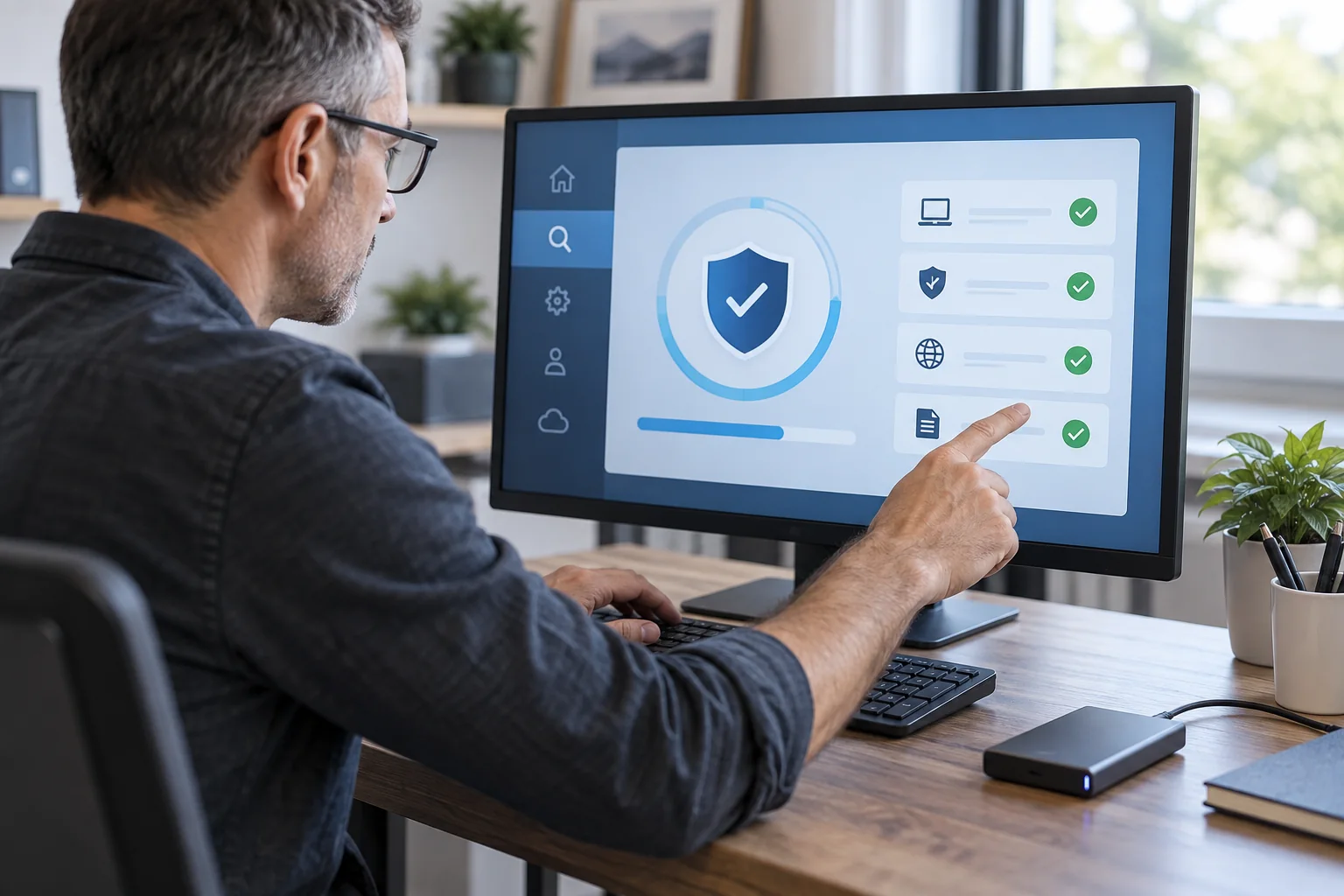
5 Ways to Secure Your Computer from Viruses (Step-by-Step Guide)
With cyber threats on the rise, securing your computer from viruses and malware is more important than ever. Whether you use your PC for work, gaming, or browsing, a single virus can compromise your data, slow down performance, or even lock you out completely.
This step-by-step guide will walk you through the best practices to keep your computer virus-free. If you’re in Denver or surrounding areas, we also provide on-site virus removal and cybersecurity solutions to keep your system protected.
Install and Maintain a Strong Antivirus Software
Step 1: Choose a Trusted Antivirus
Popular options include Bitdefender, Norton, McAfee, Kaspersky, and Windows Defender (built-in for Windows 10/11).
Avoid free antivirus programs with aggressive ads or limited protection.
Step 2: Keep Your Antivirus Updated
Open your antivirus software and enable automatic updates.
Set it to run daily scans or at least a weekly full system scan.
Step 3: Perform a Full System Scan
Go to your antivirus dashboard and select Full Scan to detect hidden threats.
If malware is found, follow the removal steps provided by the software.
✅ Best for: Preventing common viruses, spyware, and ransomware. ❌ Limitations: Advanced malware (rootkits) may bypass basic antivirus detection.
Keep Your Operating System and Software Updated
Step 1: Enable Automatic Updates on Windows & Mac
Windows Users: Go to Settings > Update & Security > Windows Update.
Click Check for Updates and enable automatic updates.
Mac Users: Open System Preferences > Software Update.
Enable Automatic Updates to keep macOS secure.
Step 2: Update Your Browsers & Plugins
Open Google Chrome, Firefox, Edge, or Safari.
Go to Settings > About to check for browser updates.
Update Java, Flash, and other plugins to prevent security vulnerabilities.
✅ Best for: Closing security loopholes that hackers exploit. ❌ Limitations: Older software versions may stop receiving updates, requiring an upgrade.
Use Strong Passwords and Multi-Factor Authentication (MFA)
Step 1: Create Secure Passwords
Use a mix of uppercase, lowercase, numbers, and symbols (e.g., P@ssw0rd#2024 ).
Avoid using the same password for multiple accounts.
Step 2: Use a Password Manager
Store and generate strong passwords with Bitwarden, LastPass, or 1Password.
Avoid saving passwords in your browser for better security.
Step 3: Enable Two-Factor Authentication (2FA)
Activate 2FA on your email, banking, and important accounts.
Use an authentication app (Google Authenticator, Authy) instead of SMS codes.
✅ Best for: Protecting against password leaks and brute-force attacks. ❌ Limitations: If you forget your 2FA codes, account recovery can be difficult.
Avoid Suspicious Links and Downloads
Step 1: Verify Emails and Messages Before Clicking Links
Red Flags in Emails & Texts: ❌ Urgent action required (e.g., “Your account will be closed!”) ❌ Unknown sender with odd email formatting ❌ Unexpected attachments or weird file extensions (.exe,.scr,.zip)
If unsure, hover over links to see the real destination URL before clicking.
Step 2: Download Software from Official Sources Only
Only download apps and software from official websites or trusted app stores.
Avoid “cracked” software—it often contains hidden malware.
Step 3: Use an Ad Blocker & Anti-Phishing Extensions
Install uBlock Origin (Chrome/Firefox) to block malicious ads.
Use Bitdefender TrafficLight for extra phishing protection.
✅ Best for: Preventing ransomware, phishing, and hidden malware. ❌ Limitations: Some safe websites may block content when ad blockers are enabled.
Backup Your Important Data Regularly
Step 1: Use an External Hard Drive or Cloud Storage
Cloud Options: Google Drive, OneDrive, Dropbox
Local Backup: External HDD or SSD (Western Digital, Seagate)
Step 2: Set Up Automatic Backups
Windows: Go to Control Panel > Backup & Restore > Set up backup.
Select an external drive or network location.
Mac: Open System Preferences > Time Machine.
Choose an external drive and set hourly, daily, or weekly backups.
Step 3: Test Your Backups
Try restoring a file from your backup to ensure it works properly.
Keep multiple backups in different locations for extra security.
✅ Best for: Preventing data loss from ransomware or hardware failure. ❌ Limitations: Cloud storage requires internet access and may have limited free space.
Final Thoughts: Protect Your PC from Viruses Now! Quick Recap: ✔ Install & update antivirus software for real-time protection. ✔ Keep your operating system & software updated to prevent security loopholes. ✔ Use strong passwords & 2FA to stop unauthorized access. ✔ Avoid phishing scams & suspicious downloads to stay malware-free. ✔ Regularly back up your data in case of ransomware or hardware failure. 🚀 Need professional virus removal or PC security help in Denver? 🔹 We provide on-site virus removal, security audits, and system optimization. 📞 Call us today to secure your computer and protect your data!